
Merge Member Profiles
From the CSR area of the platform, you can merge two Member Profiles into a single Profile. This feature is useful if, for example, you learn that an individual has accidentally created two membership accounts, perhaps using different email addresses.
The platform utilizes the following terminology to distinguish between the two Profiles being merged:
-
Source Profile: After the merge is complete, this Profile will be deactivated.
-
Target Profile: After the merge is complete, this Profile will remain active, and will contain the fully merged information from both Profiles.
Note: Merging Profiles is irrevocable; you can’t revert or undo a Profile merge. In addition, after the merge is complete, you can’t “reverse” a merge to flip the Source and Target. Be sure you carefully select which Profile is to be the Target, and which is to be the Source.
The platform supports a wide range of configuration settings that control what Profile information gets merged. Please reach out to your Zeta Global team if you have any questions, or want to make any changes to these settings.
To merge two Member Profiles:
-
Select Members from the top navigation bar, then select CSR > People from the side navigation menu. The People screen is displayed.
-
On the People screen, search for and select the Target Profile (see
Note: You must start the merge process by selecting the Target Profile. That is, the Member Profile that will be retained going forward.
-
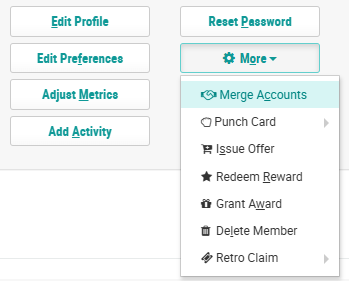
Within the header section of the screen, click More > Merge Accounts. The Merge Account of One Member into Another pop-up window is displayed.
-
In the Source Member field, search for the desired Source Profile by entering all or part of the Source Member’s name, email address, or Member ID. From the search results, select the desired Member.
-
Click Preview. The Preview window is displayed, showing what the results of the merge process will be. Carefully review these results to ensure that the platform is performing the merge as expected.
-
Click Merge.
After the merge is complete, if you view the Source Profile, it will have a status of Deactivated, and will indicate the Target Profile to which it was merged. The Source Profile will have no Metric balances, and no activity.
If you view the Target Profile, you will see the newly merged information, depending on which data you include in a merge (see above for details on what information can be merged).
-
If you merged Metrics, the Target Profile will show the new Metric balances. The changes made to the Target Profile’s Metrics will appear in the Activity tab as “Balance Adjustments.” In addition, the platform will evaluate the Target Profile’s appropriate Tier based on their new Metric balance. Any changes to their Tier will appear in the Activity tab as “Tier Adjustments.”
-
If you merged response types, you will see the responses from the Source Profile now listed in the appropriate tab of the Target Profile.
